Forwarding a text message to an email address is useful when archiving client approvals, sharing verification codes with an operations team or logging field updates into a ticketing system. Here are the reliable ways to forward texts manually or automatically without losing messages to spam filters.
1. Manual forwarding from iOS and Android
- iPhone (iOS Messages): press and hold the message bubble, tap More, select the messages to include, tap the curved Forward arrow and type the recipient's email address in the
To:field. The carrier sends the message as an MMS-to-email payload. - Android (Google Messages): tap and hold the message, open the three-dot menu, choose Forward or Share, and select your email client (
Gmail,Outlook) to send it over standard SMTP from your own mailbox.
2. Automated forwarding for business numbers
Manual carrier forwarding is slow and often lacks proper DKIM alignment. For business workflows:
- Use a VoIP number or an automation workflow (for example, via n8n, Make or Zapier) that triggers on an inbound SMS webhook and sends a structured email through an authenticated transactional ESP.
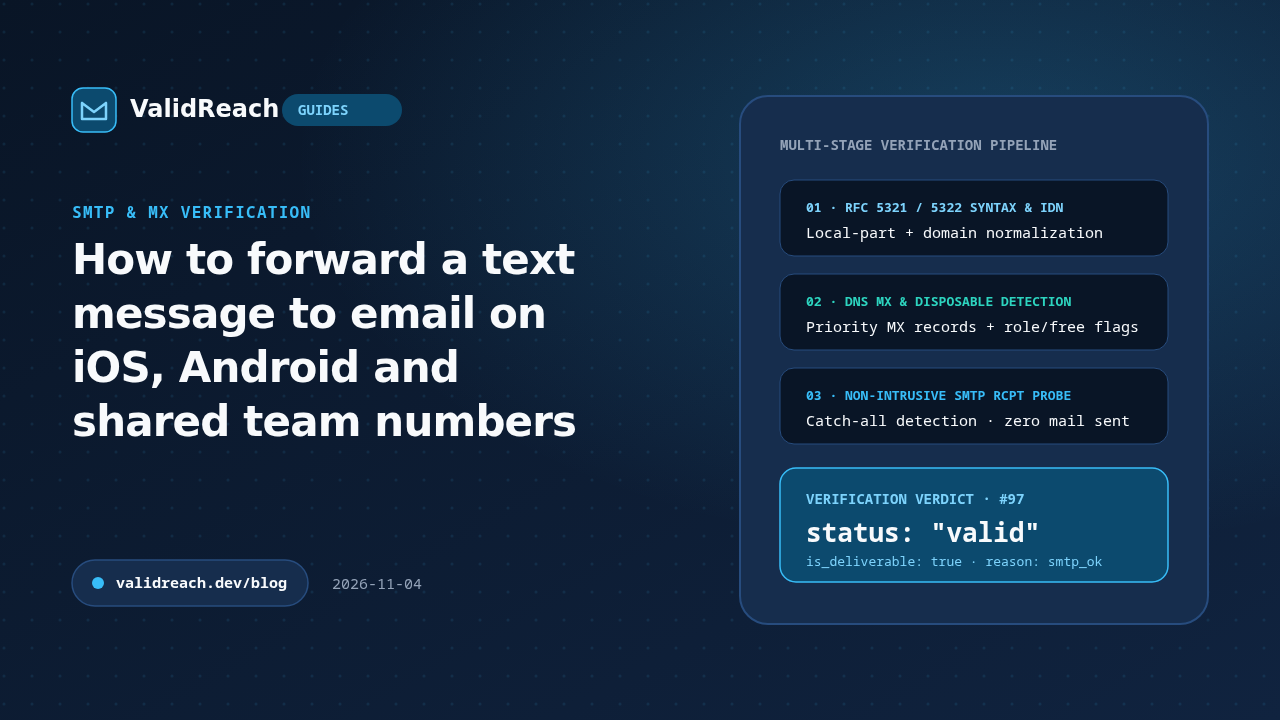
- Always verify the destination email address with ValidReach before activating automated forwarding rules so misconfigured rules do not generate hard bounces.
Sources
- IETF RFC 5321 — Simple Mail Transfer Protocol — accessed 2026-11-04
- ValidReach Automation Workflows — accessed 2026-11-04